Calculators are the single most frequently used digital tool on the web, powering millions of calculations daily across household budgeting, construction measuring, student homework, and scientific research.
Yet despite their ubiquity, many users struggle with counter-intuitive results caused by operator precedence (PEMDAS/BODMAS), misuse of memory registers (MC, MR, M+, M-), and percentage key quirks. This definitive guide explains the inner workings of online calculators and how to get 100% accurate results every time.
Quick answer:An online calculator processes mathematical expressions using either immediate execution (left-to-right) or standard algebraic hierarchy (PEMDAS/BODMAS). Use parentheses to control execution order, utilize memory buttons (MS/M+/MR) for running totals, and press % to calculate markups, discounts, and tips instantly.
The Order of Operations: PEMDAS vs BODMAS Explained
When you type an equation with multiple operations—such as `5 + 3 × 2`—the result depends entirely on whether the calculator follows immediate execution or algebraic hierarchy.
In simple desk calculators, `5 + 3` equals 8, then `8 × 2` equals 16. However, in standard mathematics and modern online calculators, multiplication takes precedence over addition, so `3 × 2 = 6`, and `5 + 6 = 11`.
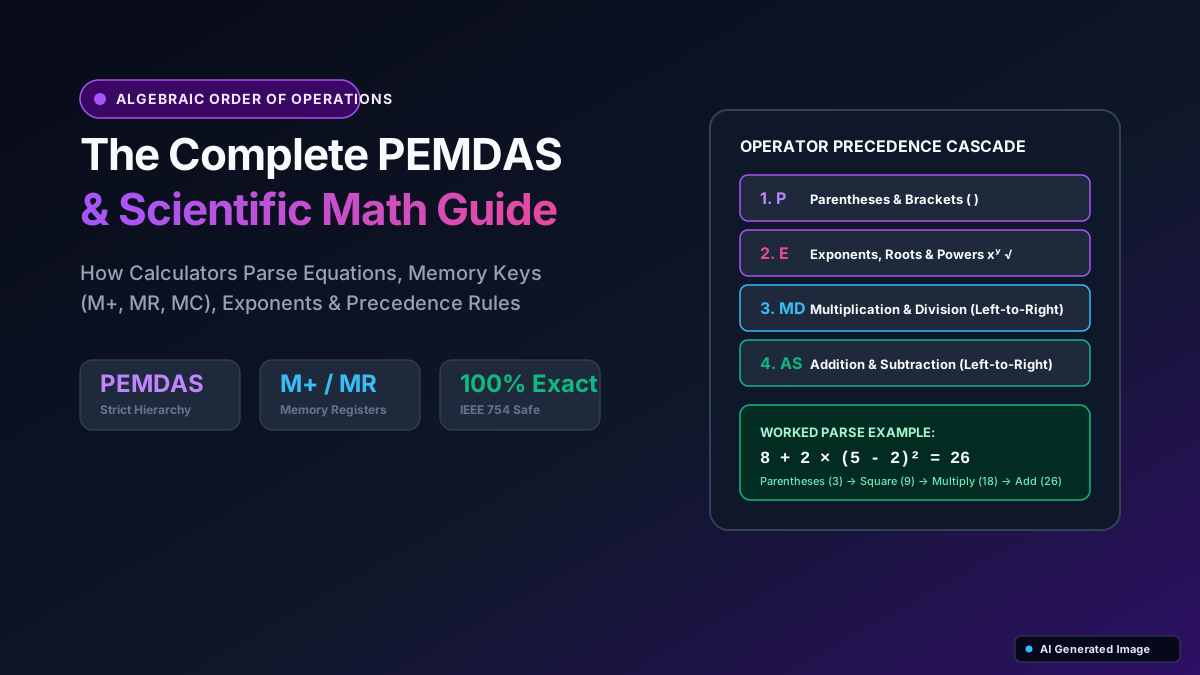
The standard order of operations is remembered by the acronyms **PEMDAS** (US) or **BODMAS** (UK, Commonwealth):
| Precedence | PEMDAS Term | BODMAS Term | Mathematical Operation | Example & Rule |
|---|---|---|---|---|
| 1 (Highest) | Parentheses | Brackets | ( ) [ ] { } | Always evaluated first from innermost to outermost. |
| 2 | Exponents | Orders / Indices | x², xʸ, √x | Powers and roots evaluated before basic operations. |
| 3 (Tie) | Multiplication | Multiplication | × or * | Evaluated from left to right as encountered. |
| 3 (Tie) | Division | Division | ÷ or / | Equal priority with multiplication; resolve left to right. |
| 4 (Tie) | Addition | Addition | + | Evaluated left to right after multiplication & division. |
| 4 (Tie) | Subtraction | Subtraction | − or - | Equal priority with addition; resolve left to right. |
How to Use Calculator Memory Keys (MC, MR, M+, M-, MS)
Memory keys allow you to store intermediate numbers without writing them down on a scrap of paper, making them invaluable for grocery budgeting, multi-room flooring estimates, and tax returns:
Here is what each memory button does and how to use them together in a real workflow:
- MS (Memory Store): Saves the active display value directly into the calculator's independent memory bank, replacing whatever was there before.
- M+ (Memory Add): Adds the currently displayed number to the value currently stored in memory. If memory is empty, it acts like MS.
- M− (Memory Subtract): Subtracts the currently displayed number from the value currently stored in memory.
- MR (Memory Recall): Displays the stored memory number on screen without erasing it from memory.
- MC (Memory Clear): Resets the memory storage back to 0. Always press MC before starting a fresh multi-step calculation.
Worked Memory Example: Estimating Flooring for Three Rooms
Suppose you want to calculate total square footage cost for three rooms: Living Room (12 × 15 ft @ $4/sq ft), Bedroom (10 × 12 ft @ $3/sq ft), and Hallway (4 × 10 ft @ $5/sq ft):
| Step | Key Sequence | Display Value | Memory Bank Value | Notes |
|---|---|---|---|---|
| 1. Clear Memory | Press [MC] | 0 | 0 | Wipes any old memory. |
| 2. Living Room | 12 × 15 × 4 = [M+] | $720 | $720 | Living room cost stored in memory. |
| 3. Bedroom | 10 × 12 × 3 = [M+] | $360 | $1,080 | Bedroom cost added to memory ($720 + $360). |
| 4. Hallway | 4 × 10 × 5 = [M+] | $200 | $1,280 | Hallway cost added to memory ($1,080 + $200). |
| 5. Final Total | Press [MR] | $1,280 | $1,280 | Instant grand total of all three rooms combined. |
Mastering the Percentage (%) Key and Calculation Shortcuts
The percentage key is one of the most misunderstood keys on a calculator. Mathematically, 1% is equal to 0.01 (1 divided by 100).
Understanding how to calculate percentages with basic decimal multiplication eliminates confusion across different devices:
- Finding a Percentage of a Number: To find 15% of $80, enter `80 × 0.15 = $12`.
- Calculating a Discount (15% off $80): Enter `80 × (1 − 0.15) = 80 × 0.85 = $68`.
- Calculating Sales Tax or Markup (8.25% tax on $50): Enter `50 × 1.0825 = $54.13`.
- Finding Percentage Change (Old Price $40, New Price $50): Enter `(50 − 40) ÷ 40 × 100 = +25%`.
Scientific Calculator Functions: Trigonometry, Logs & Powers
When switching to Scientific Mode, an expanded keypad unlocks advanced algebraic and trigonometric functions required for engineering, physics, and higher math:
1. **Trigonometric Functions (sin, cos, tan)**: Calculates ratios of right triangle sides. Ensure your mode is set to **DEG** (Degrees) for geometry and carpentry, or **RAD** (Radians) for calculus.
2. **Powers and Roots (xʸ, √x, x²)**: `xʸ` allows you to raise any base to any exponent (e.g., `2 ^ 8 = 256`). Square root `√x` computes the value that, multiplied by itself, equals the input.
3. **Logarithms (log vs ln)**: `log` evaluates common base-10 logarithms (e.g., `log(1000) = 3`), while `ln` calculates natural logarithms with base `e` (Euler's number ≈ 2.71828).
Frequently Asked Questions
Click any question below to expand quick answers, formulas, and expert tips.
Why does 0.1 + 0.2 sometimes equal 0.30000000000000004 in programming calculators?
Computers represent floating-point numbers in binary (base-2). Just as 1/3 cannot be cleanly represented in decimal (0.3333...), fractions like 0.1 and 0.2 have repeating binary representations, causing minor IEEE-754 precision artifacts unless rounded cleanly.
What is the difference between CE and AC/C on a calculator?
CE (Clear Entry) erases only the number currently being typed without affecting the overall equation or memory. AC (All Clear) or C clears the entire active equation and resets the display to zero.
Can I use parentheses on this online calculator?
Yes, open Scientific Mode to use '(' and ')' parentheses to group terms and force custom execution precedence.
The Bottom Line
Whether balancing a budget, computing carpentry angles, or solving algebra homework, our free Online Calculator gives you instant, reactive computations with full keyboard shortcuts and memory registers.
This article is for informational and educational purposes. Always verify complex calculations with a qualified professional or official documentation.